tmux essentials for devs — the shortcuts that pay for themselves
tmux keeps sessions alive across SSH drops and lets you multiplex terminals. Here's the minimal set of commands that pay back in the first week.
You SSH into a server, start a long-running task, your laptop lid closes, connection drops, task dies. Or you have four terminal tabs for one debug session and lose track of which is which. tmux fixes both. Here’s the minimal set of commands that pay back in the first week — no configuration file required.
Install and start
# Debian/Ubuntu
sudo apt install tmux

# macOS
brew install tmux

# RHEL/Fedora
sudo dnf install tmux
Start a new session:
tmux new -s work
work is a session name. Any string. Give it something meaningful — you’ll refer to it later.
The two rules of tmux
Rule 1: Every tmux command starts with a “prefix” key. Default is Ctrl+b. Press and release, then press the actual command key.
Rule 2: Detaching keeps everything running in the background. Disconnecting SSH is safe. Closing the terminal is safe. The session persists until you kill it.
The 10 commands that matter
Every command below assumes you press Ctrl+b first, then release, then press the command key.
Detach (leave session running):
Ctrl+b d
Reattach from anywhere:
tmux attach -t work
List sessions:
tmux ls
Each row shows the session name, window count, and creation timestamp.
Create a new window (like a browser tab):
Ctrl+b c
Switch between windows:
Ctrl+b   0   # window 0
Ctrl+b   1   # window 1
Ctrl+b   n   # next
Ctrl+b   p   # previous
Rename current window:
Ctrl+b ,
Type new name, press Enter. Helps when you have 5+ windows.
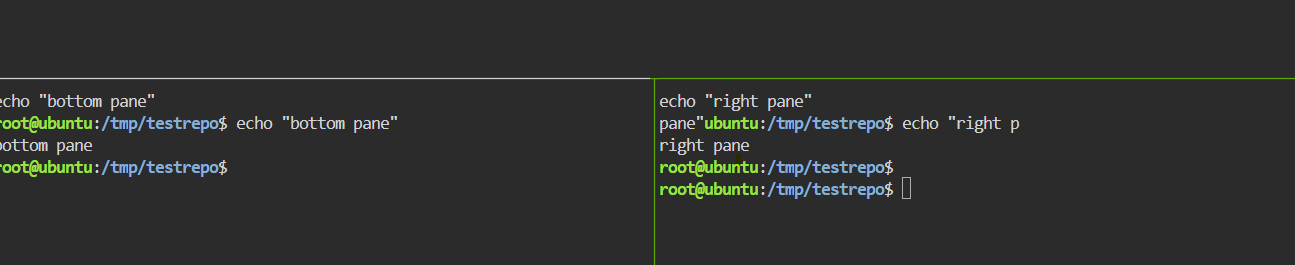
Split window into panes:
Ctrl+b   %    # vertical split (left/right)
Ctrl+b   "    # horizontal split (top/bottom)
Move between panes:
Ctrl+b <arrow key>
Close current pane:
Ctrl+b x # asks for confirmation
Or just type exit in the pane.
Enter scroll mode (read history above the visible screen):
Ctrl+b [
Now use arrow keys or Page Up/Down to scroll. Press q to exit scroll mode.
That’s it. Ten commands. Learn them in one afternoon.
The workflow that pays for itself
Scenario: long-running server task, unreliable SSH.
ssh user@server
tmux new -s deploy
./long-running-deploy.sh
Laptop dies, wifi drops, you close the lid — doesn’t matter. When you reconnect:
ssh user@server
tmux attach -t deploy
You’re back exactly where the task was. Its output continued while you were disconnected.
Scenario: multi-window debugging.
tmux new -s debug
# window 0: your app logs
tail -f /var/log/app.log

# Ctrl+b c → new window
# window 1: system stats
htop

# Ctrl+b c → new window
# window 2: SQL console
psql -U user db

# Ctrl+b c → new window
# window 3: shell for kubectl
Switch between them with Ctrl+b <number>. All persistent across disconnect.
Config that’s actually worth adding
Create ~/.tmux.conf:
# Use Ctrl+a as prefix instead of Ctrl+b (much easier to reach)
unbind C-b
set-option -g prefix C-a
bind-key C-a send-prefix

# Start window numbering at 1 (matches keyboard position)
set -g base-index 1
setw -g pane-base-index 1

# Enable mouse (click to switch panes, scroll with wheel)
set -g mouse on

# Larger scrollback buffer
set -g history-limit 50000

# Reload config with prefix + r
bind r source-file ~/.tmux.conf \; display-message "Config reloaded"

# Split panes with intuitive keys, keep working directory
bind | split-window -h -c "#{pane_current_path}"
bind - split-window -v -c "#{pane_current_path}"

# Colors (256-color support)
set -g default-terminal "screen-256color"
Save, then reload:
tmux source-file ~/.tmux.conf
Everything else in this article uses the DEFAULT Ctrl+b prefix. If you switch to Ctrl+a, adjust accordingly.
Common gotchas
“tmux: command not found”: package name varies. Try apt install tmux, dnf install tmux, or brew install tmux.
Colors look wrong: set TERM in your shell before starting tmux:
export TERM=xterm-256color
tmux
Copy-paste doesn’t work: by default, tmux’s copy buffer is separate from system clipboard. On Mac, install reattach-to-user-namespace. On Linux, add to ~/.tmux.conf:
set -g set-clipboard on
Nested tmux (SSH into a machine that already runs tmux): hitting Ctrl+b sends to outer tmux, not inner. Press prefix twice (Ctrl+b Ctrl+b) then the command to hit the inner session.
Session dies when server reboots: it will. tmux is per-boot. For truly persistent sessions across reboots, use systemd services or nohup.
When tmux beats screen (its predecessor)
- Better default keybindings
- Actively maintained
- Multi-machine window sharing (advanced feature)
- Cleaner status bar
- Panes (screen has “regions” but they’re less flexible)
If a server has screen but no tmux, install tmux. If you can’t, screen’s Ctrl+a prefix and basic commands (Ctrl+a c for new window, Ctrl+a d for detach) work similarly.
The three-command survival kit
If you learn nothing else, learn these three:
tmux new -s <name>              # start
Ctrl+b d                        # detach (safe to close terminal)
tmux attach -t <name>           # reattach later
Those three commands alone save days per year — the “SSH dropped during deploy” scenario alone can waste hours per incident.
Bottom line
tmux is one of the highest ROI tools you can add to a dev workflow. Ten commands cover 95% of usage. Persistent sessions across SSH drops eliminate an entire class of “everything died” incidents. Split panes and windows keep debugging organized. Config file is optional but the six lines above are worth adding on day one.